Ollama on Your Local Network: OLLAMA_HOST Setup Guide
Published 29 August 2026 · 8 min read
By Cong Le · Pocket Grove
Sources reviewed: .
Bring your own Ollama host to iPhone
Quick answer: To serve Ollama on your local network, set
OLLAMA_HOST=0.0.0.0:11434and restart the server (OLLAMA_HOST=0.0.0.0:11434 ollama serve) so it listens on every interface instead of only localhost, then allow inbound TCP on port 11434 through your firewall. Verify from another device withcurl http://YOUR_IP:11434/api/tags; a JSON list of models confirms it works. The local API has no authentication, so keep it on your LAN and use a VPN for remote access rather than exposing port 11434 to the internet.
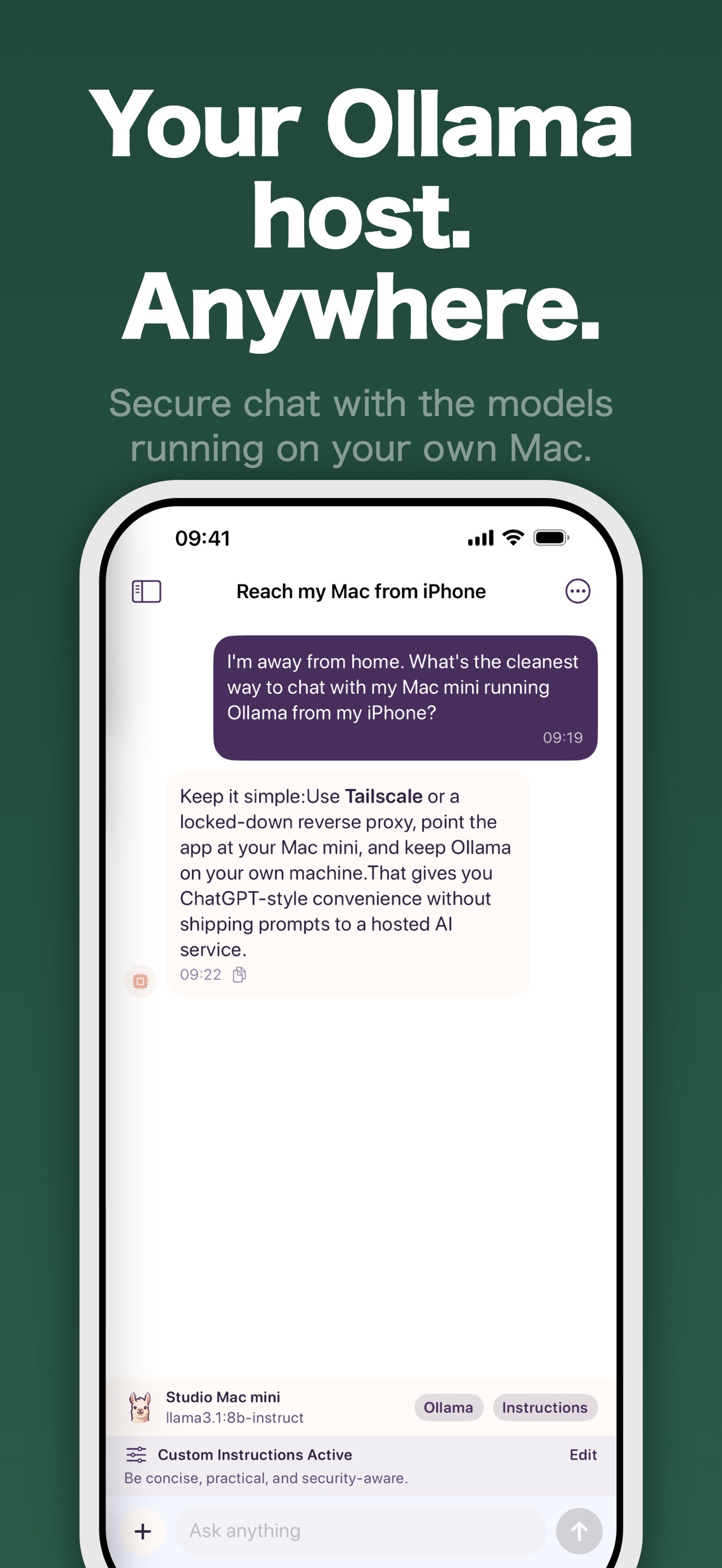
Store screenshot from the Apple listing, reviewed 25 September 2026. It illustrates the client-to-host relationship; it does not prove that your network, host or model is configured.
Out of the box, Ollama is a single-machine tool. It listens only on localhost, which is perfect for privacy but useless the moment you want to reach your models from another device. This guide covers the full path to serving Ollama on your local network: binding the server correctly with OLLAMA_HOST, getting through the firewall, verifying the endpoint with curl, and finally connecting from an Android phone or iPhone. Each step includes how to confirm it actually worked, so you are never guessing.
Reproducible check: record your own result
The commands in this section are a reader procedure. Pocket Grove did not execute them against your computer, and 192.168.1.42 and llama3.2 are placeholders. Replace them with the address and model that your own host reports.
Run the server on the host, then check its LAN address:
OLLAMA_HOST=0.0.0.0:11434 ollama serve
ipconfig getifaddr en0        # macOS Wi-Fi; use your platform's command on Linux or Windows
From a different device on the same trusted network, record the response:
curl --fail-with-body http://192.168.1.42:11434/api/tags
curl --fail-with-body http://192.168.1.42:11434/api/generate -d '{
  "model": "llama3.2",
  "prompt": "Reply with the single word: working",
  "stream": false
}'
Your observed result should be a JSON model list followed by a completed response. If the first command refuses or times out, keep the result as a diagnostic clue and work through the binding, firewall and subnet checks below. Do not describe these placeholder responses as results from Pocket Grove's infrastructure.
The one variable that matters: OLLAMA_HOST
Ollama's network behavior is controlled by the OLLAMA_HOST environment variable. By default it binds to 127.0.0.1:11434, meaning it only accepts connections originating from the same machine. This binding and the override are documented in Ollama's official network FAQ. To serve other devices, bind it to all network interfaces:
OLLAMA_HOST=0.0.0.0:11434 ollama serve
The 0.0.0.0 address means "listen on every interface," so requests arriving over Wi-Fi or Ethernet are accepted. The port stays at the default 11434 unless you change it.
A common mistake is setting the variable but not restarting the server. The value is read at startup, so if Ollama was already running, quit it completely first. On macOS that means quitting the menu bar app; the background service will not pick up a new value while it is still alive.
Making it persistent on macOS
If you want the desktop app to always bind this way, set the variable at the launch-agent level and relaunch:
launchctl setenv OLLAMA_HOST "0.0.0.0:11434"
Then quit and reopen Ollama. On Linux running under systemd, add an override:
sudo systemctl edit ollama.service
and inside the editor add:
[Service]
Environment="OLLAMA_HOST=0.0.0.0:11434"
Save, then reload and restart:
sudo systemctl daemon-reload
sudo systemctl restart ollama
Find the server's address
Other devices need your machine's IP on the LAN. Do not use localhost or 127.0.0.1 from the phone; those point at the phone itself.
ipconfig getifaddr en0        # macOS, Wi-Fi
hostname -I | awk '{print $1}' # Linux
You will get something like 192.168.1.42. Your full endpoint is http://192.168.1.42:11434. Note it down.
Open the firewall
Binding to 0.0.0.0 is only half the battle. The operating system firewall may still block incoming connections on port 11434.
macOS. Go to System Settings, Network, Firewall. If the firewall is on, allow incoming connections for the Ollama application. macOS may prompt the first time an app accepts an incoming connection, so watch for that dialog when you start ollama serve.
Linux with ufw. Allow the port on your local subnet only, which is safer than opening it to everything:
sudo ufw allow from 192.168.1.0/24 to any port 11434 proto tcp
Windows. Add an inbound rule for TCP port 11434 in Windows Defender Firewall, scoped to your private network profile.
Verify with curl before anything else
This is the step people skip and then spend an hour debugging the wrong thing. Before you touch a phone or any client app, prove the endpoint is reachable across the network. From a different device on the same LAN:
curl http://192.168.1.42:11434/api/tags
A JSON object listing your installed models means the server is bound, the firewall is open, and the network path is clear. If you want to test generation end to end:
curl http://192.168.1.42:11434/api/generate -d '{
  "model": "llama3.2",
  "prompt": "Reply with the single word: working",
  "stream": false
}'
If both succeed, every network layer between the second device and your model is confirmed working. A compatible client can now connect.
If curl fails
- Connection refused: the server is not listening on that interface (re-check
OLLAMA_HOSTand that you restarted) or the firewall is blocking the port. - Hangs then times out: almost always the firewall, or the two devices are on different subnets or an isolating "guest" network.
- Works with localhost but not the IP: you may not have restarted after setting
OLLAMA_HOST=0.0.0.0:11434. Restart first, then check the firewall.
Connect from Android or iOS
With curl confirming the endpoint, connecting a phone is straightforward. Install Ollama Connect for Android from Google Play, or see the iPhone version, then either let it discover the server on your local network automatically or add the host manually with http://192.168.1.42:11434. The app shows connection diagnostics so you can see the host is healthy, then lets you pick a model per chat and stream responses that render Markdown and code cleanly. Everything stays on your device; nothing routes through a third party.
If you are deciding whether the setup is worth it, the companion private LLM at home guide covers the hardware, privacy, and cost trade-offs.
A security note
Serving Ollama on your local network is reasonable only when you trust that network. Ollama's local API requires no authentication, so anyone who can reach port 11434 can submit work to your models and consume the machine's resources. The connection is also plain HTTP unless you add a secure layer. Do not port-forward 11434 to the public internet; use a VPN into your home network for remote access instead.
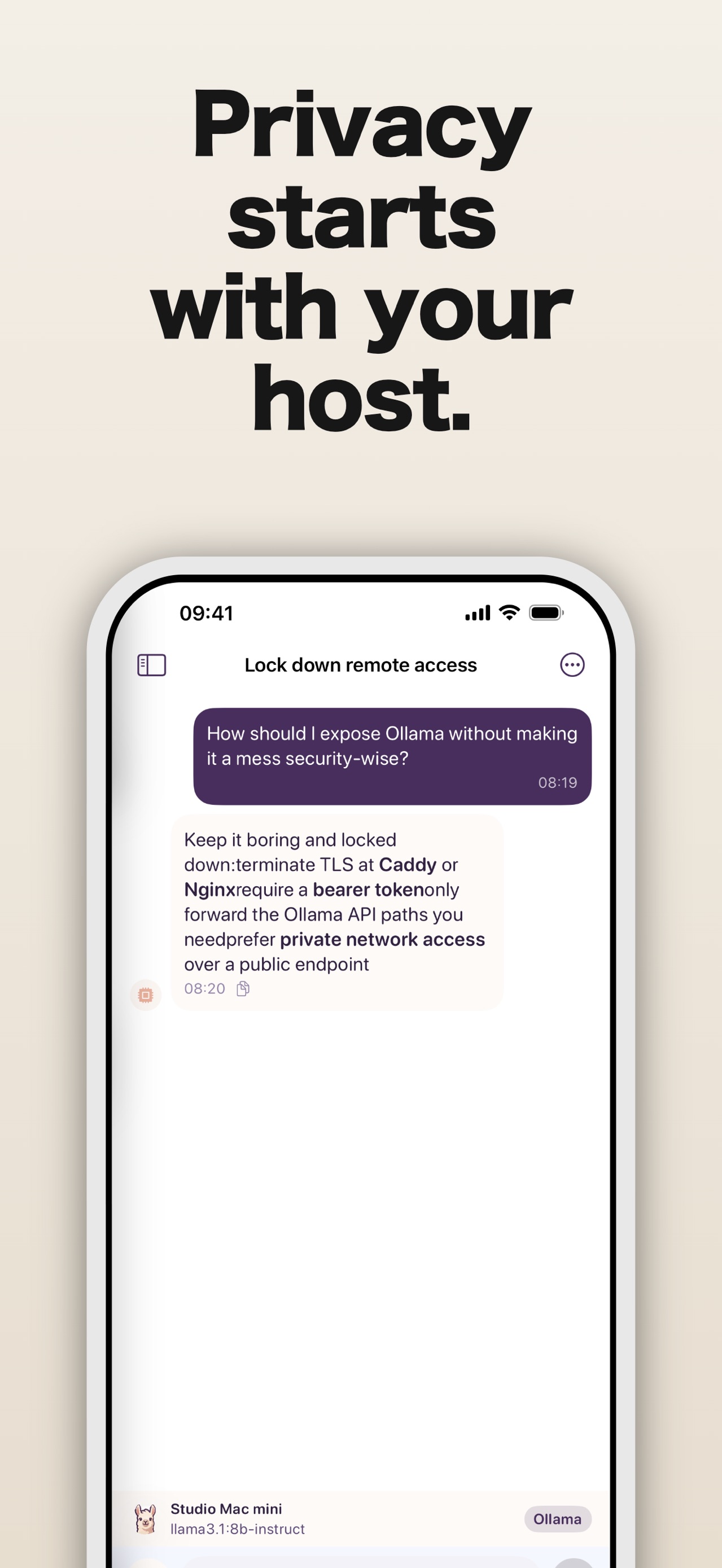
A second store image shows the app framing remote access around the host and displaying a selected local model. It is a product illustration, not evidence that a public endpoint is safe; keep the LAN-only and no-authentication limits above in force.
FAQ
What does OLLAMA_HOST=0.0.0.0 actually do?
It tells Ollama to listen on every network interface instead of only localhost, so other devices on your network can connect. Including :11434 keeps the default port explicit. The change takes effect only after you restart the Ollama server.
Which port does Ollama listen on?
Port 11434 by default. You can override it by including a port in OLLAMA_HOST, for example OLLAMA_HOST=0.0.0.0:11500, but most setups leave it at 11434.
Why does localhost work but my IP address doesn't?
The most likely reason is that Ollama is still bound to localhost from a previous start. Fully quit and restart it with OLLAMA_HOST=0.0.0.0:11434 ollama serve. If it still fails, the operating system firewall may be blocking incoming connections on port 11434.
Is it safe to expose Ollama to the internet?
Not directly. The local API has no authentication, so exposing port 11434 publicly lets anyone use your models. Keep it on a trusted local network and use a VPN for remote access.
How do I confirm the server is reachable from another device?
Run curl http://YOUR_IP:11434/api/tags from a different machine on the same network. A JSON list of models confirms the binding, firewall, and network path are all working before you try any client app.
The app behind this guide
Ollama Connect
Once your local endpoint answers on the LAN, Ollama Connect gives you a private phone client with connection diagnostics.
Related guides
Run a Private LLM at Home and Use It From Your Phone
Run an LLM locally on your own hardware and reach it from Android or iPhone. A privacy- and cost-focused guide to self-hosted AI with Ollama.
Best Small Ollama Models for a Home Mac in 2026
A practical shortlist of small Ollama models for a home Mac, with current model tags, download sizes, honest memory caveats, and a repeatable way to choose.