How to Add an Anniversary Countdown Widget on iPhone
Published 1 September 2026 · 8 min read
By Cong Le · Pocket Grove
Sources reviewed: .
Put the date where you will see it
Quick answer: To add an anniversary countdown widget on iPhone, touch and hold the Home Screen until the icons jiggle, tap Edit, then Add Widget. Find the app, choose a size, and tap Add Widget. For the Lock Screen, touch and hold it, tap Customize, choose Lock Screen, tap Add Widgets, and select the app's widget.
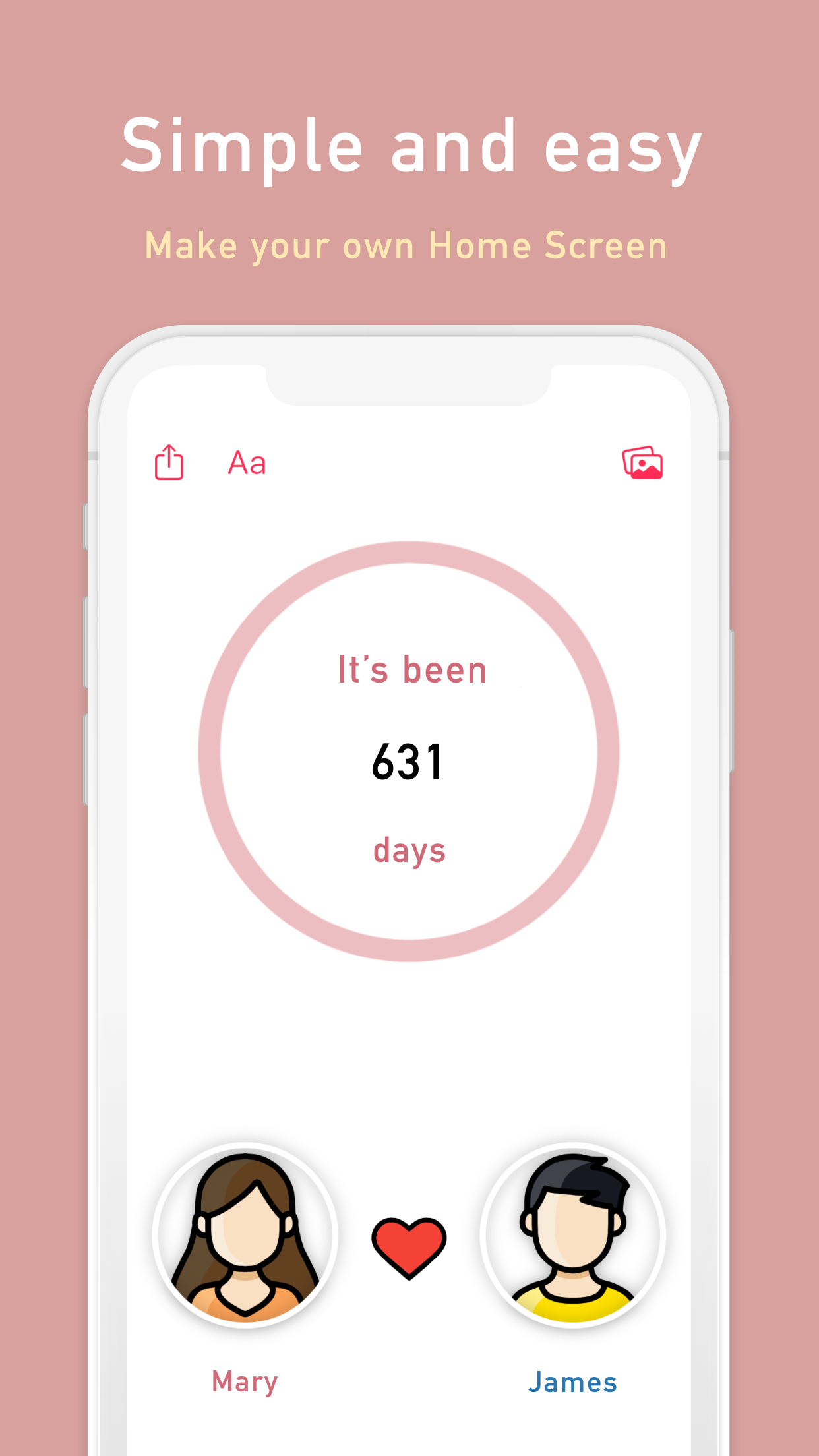
Store screenshot from the Apple listing, reviewed 25 September 2026. It shows the advertised counter and personalisation; it is not a runtime test performed for this guide.
A countdown you have to open an app to see is a countdown you will forget about. The whole point of a widget is to remove that step — to put your day count right on the home or lock screen so it greets you every time you pick up the phone. No tapping, no searching, just a passive glance that keeps the date top of mind.
This guide covers how iPhone widgets work, how to add one, and how to get the most out of an anniversary countdown specifically. The mechanics are the same across most widget-enabled apps, so once you learn the pattern you can place widgets confidently anywhere.
Home screen vs lock screen: pick your surface
iPhone gives you two places to put a widget, and they suit different habits.
Home screen widgets are larger and can show more — a photo, a title, a big day count, extra context. They live among your app icons and are great if you unlock straight to your home screen and browse it often.
Lock screen widgets are small and glanceable, sitting above or below the clock. You see them before unlocking whenever you check the time or a notification. Apple's current instructions cover widgets on the Home Screen, Lock Screen and Today View. The exact labels can change between iOS releases, so use Apple's widget guide if your screen differs from the steps below.
You do not have to choose just one. Many people put a rich home screen widget for the detail and a tiny lock screen widget for the constant reminder.
Adding a home screen widget, step by step
The flow is the same for any widget-enabled app:
- Touch and hold an empty area of your home screen until the app icons jiggle.
- Tap Edit, then Add Widget to open the widget gallery.
- Search for the app or scroll to find it in the list.
- Swipe through the available sizes (small, medium, large) and stop on the one you want.
- Tap Add Widget, then drag it wherever you like and tap Done.
If the widget supports it, touch and hold the placed widget and choose Edit Widget to configure what it shows — for example, which date it counts toward.
Adding a lock screen widget, step by step
- Touch and hold the lock screen (you may need to unlock with Face ID or your passcode first), then tap Customize and choose Lock Screen.
- Tap the widget area — the box below the clock (or the line above it for the inline slot).
- Select the app from the gallery, then tap or drag its widget into an open slot.
- Tap Done and set it as your wallpaper pair if prompted.
Lock screen real estate is tight, so these widgets show a compact version — usually just the essential number. That is exactly what you want for an at-a-glance countdown.
Setting up your anniversary countdown
Anniversary Tracker includes Home Screen and Lock Screen widgets for exactly this use case. Its automatic counter can show the relationship date in the format you select, and its widget editor supports personal photos and visual styles so the result belongs on your screen rather than looking like a generic tile.
A few tips to get the most out of it:
- Decide what Day 1 means to you. Anniversary Tracker lets you choose whether Day 1 starts on your anniversary date or the day after, so your count matches how you actually think about it. Set this before you place the widget so the number is right from the start.
- Add a profile photo. A widget with a photo of you and your partner (or your pet, or whoever the date honors) reads instantly and feels personal, which is what makes you actually look at it.
- Match the theme to your wallpaper. Because you can adjust colors and backgrounds, a little tuning makes the widget feel like part of your screen instead of an afterthought.
A setup you can copy
Use a small, repeatable setup before you start changing fonts and colours:
- Enter the date you want to count from. For example, use 14 June 2021 for a relationship that began on that date.
- Decide whether that date is Day 1 or whether the following day is Day 1. Keep the choice consistent with how you describe the milestone to the other person.
- Add a medium Home Screen widget first. It gives you enough room to recognise the title and counter without opening the app.
- Add the compact Lock Screen version only if you actually check that screen during the day.
- Set a reminder for the next important date, then check the displayed number after the first day has changed.
The date, Day 1 choice, photos, customisation, reminders and generated milestones are features described in the public listing reviewed above. The example date and placement choices are an editorial workflow, not a promise about what a particular person should count.
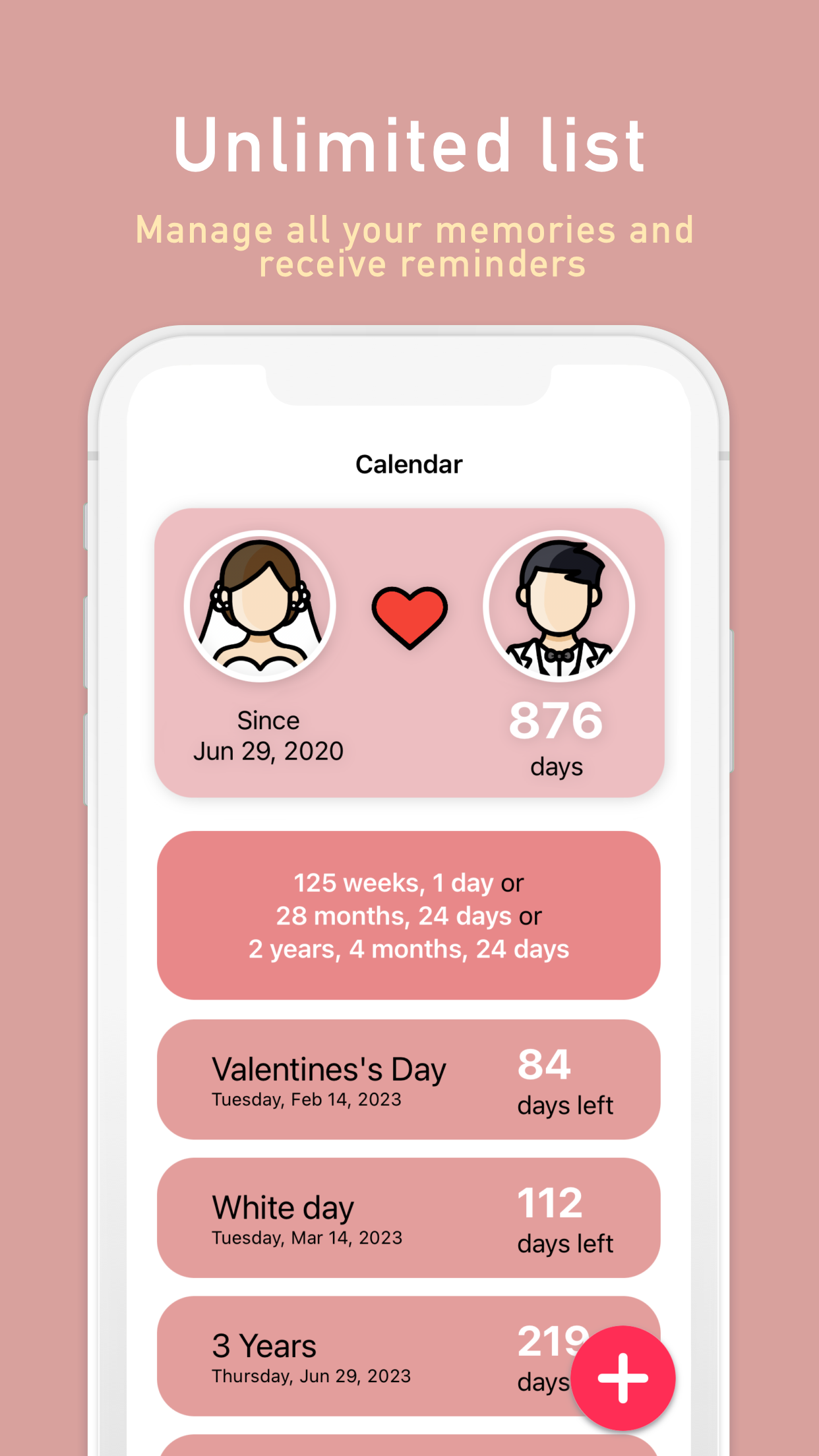
The listing artwork visibly pairs “Since Jun 29, 2020” with “876 days” and upcoming entries such as three years, Valentine's Day and White Day. Those values are example artwork; check your own date and counting convention. If you want to compare the arithmetic before saving it, use the Days Together calculator.
Troubleshooting a widget that won't cooperate
If your widget shows the wrong date or looks stale, work through the usual suspects:
- Nothing appears in the gallery? Open the app once first, then return to the widget gallery. Confirm the app is fully installed and updated.
- Wrong date showing? Touch and hold the widget, choose Edit Widget, and reselect the correct date or configuration.
- Count looks frozen? Open the app to refresh its saved data, then remove and add the widget again if the displayed configuration still has not changed.
- Widget option missing entirely? Update the app and iOS, open the app once, then check the gallery again.
Once it is in place, the payoff is quiet but real: the number you care about is simply there, counting up (or down), every time you glance at your phone. That passive presence is the single most reliable way to keep an important date from slipping your mind.
For ideas beyond the obvious yearly date, keep a separate list of meaningful milestones you want to remember. You can also get Anniversary Tracker for iPhone.
FAQ
How do I add an anniversary widget to my iPhone home screen?
Touch and hold an empty area of the Home Screen until the icons jiggle, tap Edit, then Add Widget. Find the app, choose a size, and tap Add Widget. Touch and hold the placed widget and choose Edit Widget when configuration is available.
Can I put an anniversary countdown on my lock screen?
Yes. Touch and hold the lock screen, tap Customize, choose Lock Screen, tap the widget slot below the clock, and select the app's widget. Lock screen widgets are small and glanceable, which is ideal for a countdown you want to see constantly.
Why isn't my widget showing the right number of days?
Most often the date configuration or the Day 1 setting is off. In Anniversary Tracker you can choose whether Day 1 starts on your anniversary or the day after. Touch and hold the widget, choose Edit Widget, and confirm the correct date is selected.
Do anniversary widgets require a paid version?
It depends on the app. Anniversary Tracker includes Home Screen and Lock Screen widgets; check its current in-app purchase screen for which styles and customisation options are included in your tier.
My widget won't appear in the gallery. What now?
Open the app at least once, make sure the app and iOS are updated, then return to the widget gallery. If an existing widget is stale, remove it and add it again after opening the app.
The app behind this guide
Anniversary Tracker
Anniversary Tracker turns an important date into a personal counter, reminder and widget on your iPhone.
Related guides
How Many Days Have We Been Together? Count It Correctly
Calculate how many days you have been together, choose Day 0 or Day 1, and keep 100-day and yearly milestones from slipping past.
Wedding Anniversary Milestones: Names, Meanings, and Gift Ideas by Year
Traditional wedding anniversary names by year — paper, silver, gold and more — with meanings and gift ideas for each milestone.
50 Dates Worth Tracking: Beyond Birthdays and Anniversaries
50 meaningful dates worth tracking beyond birthdays and anniversaries — first dates, adoption days, sobriety milestones, and more.